Table of Contents
- Why Is My iPhone Camera Flickering?
- Fix 1 — Clear Software Glitches (Start Here)
- Fix 2 — Stop Flickering Caused by Indoor Lights
- Fix 3 — Stop Flickering in Specific Camera Modes
- Fix 4 — Diagnose Hardware Problems
- Is Your iPhone Camera Hacked?
- Camera Flickering by iPhone Model
- When to Contact Apple Support
- Frequently Asked Questions
- What to Do If None of These Fixes Work
This blog post may contain affiliate links. As an Amazon Associate I earn from qualifying purchases.
“I have the iPhone 16 Pro Max — my camera flickers as soon as I open it, whether at home inside or outside if there are lights.”
If that sounds familiar, your iPhone isn’t broken — and it almost certainly hasn’t been hacked.
iPhone camera flickering is one of the most confusing issues iPhone owners face, because it can look completely different depending on the cause. Sometimes it’s a rolling dark band across your video. Sometimes the lens jumps in and out when you get close to something. And sometimes the whole viewfinder just blinks for no obvious reason.
By the end of this guide, you’ll know exactly why your camera is flickering and have step-by-step fixes you can try right now — no technical knowledge required. We’ll start with the fastest software fixes, then cover lighting issues, specific camera modes, and hardware problems — in order from easiest to most complex.
iPhone camera flickering has three main causes: indoor LED lighting frequency mismatches, automatic lens switching (Macro Control), and temporary iOS software glitches — all fixable without a trip to the Apple Store.
- The Flicker Ladder: Start with the easiest software fix first; work up to hardware diagnosis only if needed.
- Indoor flickering: Enable “Show PAL Formats” in iOS Settings to eliminate LED light banding.
- Lens jumping: Turn on “Macro Control” in Camera Settings to take manual control of lens switching.
- Not a hack: Camera flickering is a hardware or software issue — never spyware.
- You’re not alone: Searches for iPhone camera flickering fixes are up 82% year-over-year (keyword research metrics, 2026) — and the fix is usually under 2 minutes.
Why Is My iPhone Camera Flickering?
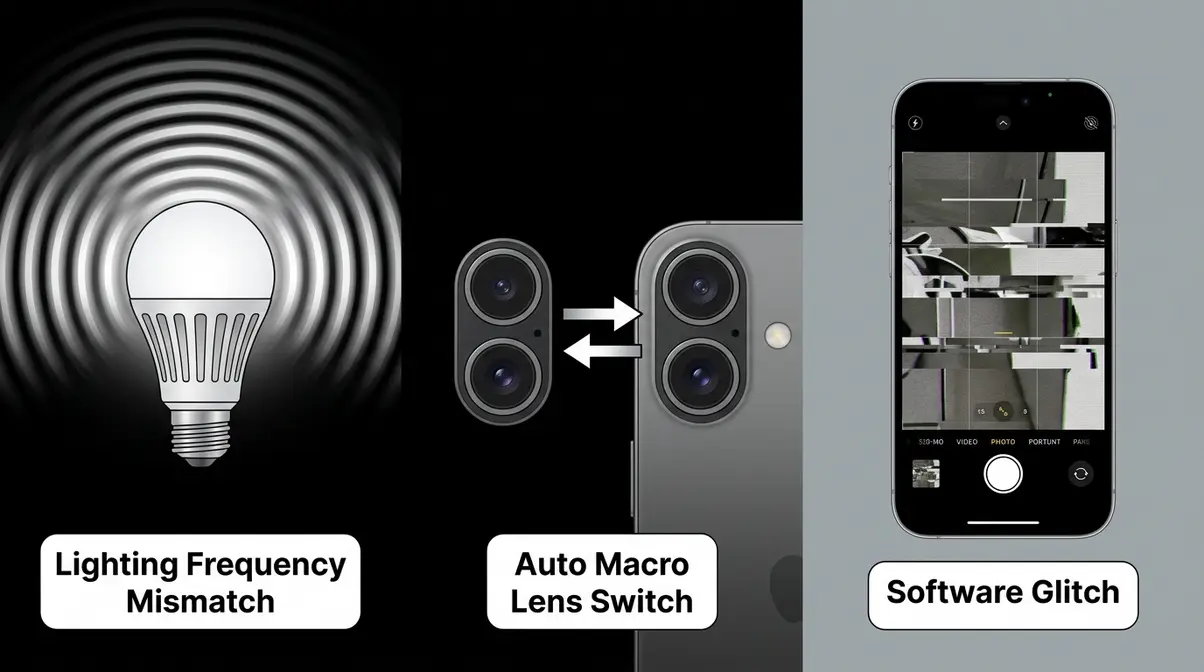
iPhone camera flickering is almost always caused by one of three things: a conflict between your camera and indoor artificial lighting, the camera automatically switching between lenses for close-up shots, or a temporary software glitch in iOS (Apple’s mobile operating system). All three causes have straightforward fixes — and most users solve the problem without any hardware repair.
Apple’s camera troubleshooting documentation confirms that the vast majority of camera issues, including flickering and blinking, are resolved through software steps before any hardware assessment is needed (Apple Support, 2026). Understanding iPhone camera capabilities and limitations can also help you set realistic expectations before diving into fixes.
3 Main Causes of Camera Flickering
Why is my iPhone camera flickering? Almost every case traces back to one of these three root causes:
- Lighting Frequency Mismatch. Your LED or fluorescent lights don’t stay on continuously — they flicker on and off at 50 or 60 times per second. Your human eye can’t detect this, but your camera’s shutter catches the light mid-cycle and records it as a dark rolling band or a strobe effect. Think of it like photographing a spinning fan — catch the blades at the wrong moment and they appear to freeze or jump.
- Automatic Macro Lens Switching. On iPhone 13 Pro and later models, the camera automatically switches to the Ultra Wide lens when you move close to a subject. This lens swap appears as a sudden flicker or jump in the viewfinder — and it catches many users completely off guard.
- Software Glitch. A bug in the Camera app or in iOS itself can cause the viewfinder to blink or freeze temporarily. This is actually the most common cause — and the easiest to fix.
Software vs. Hardware Problems
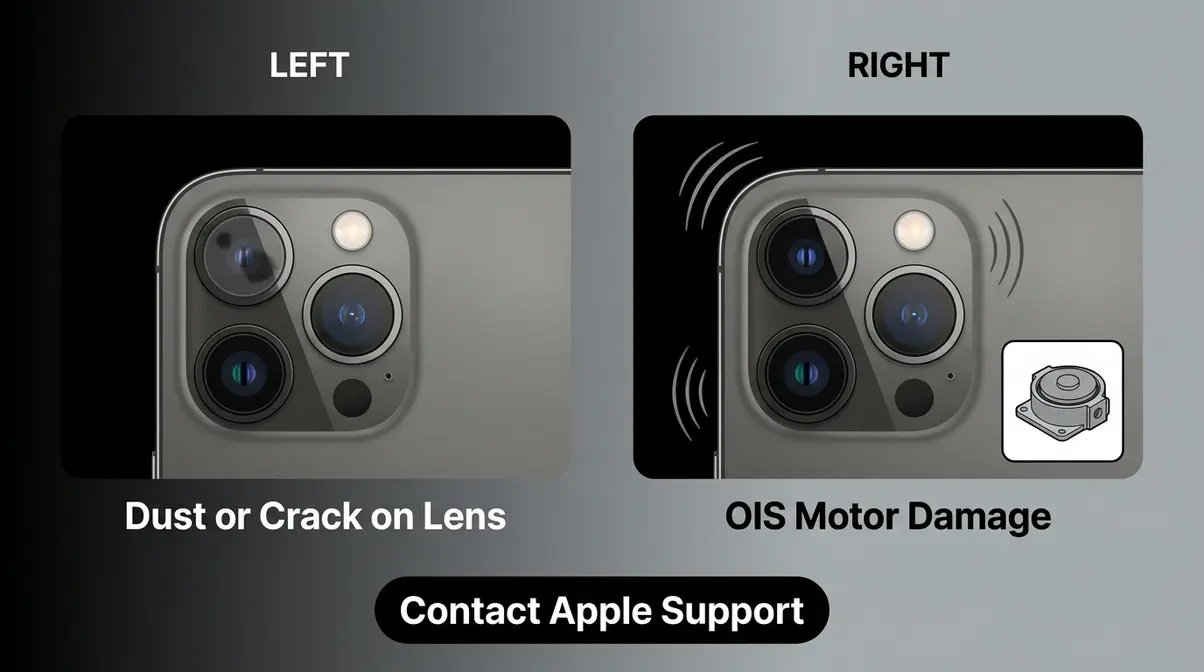
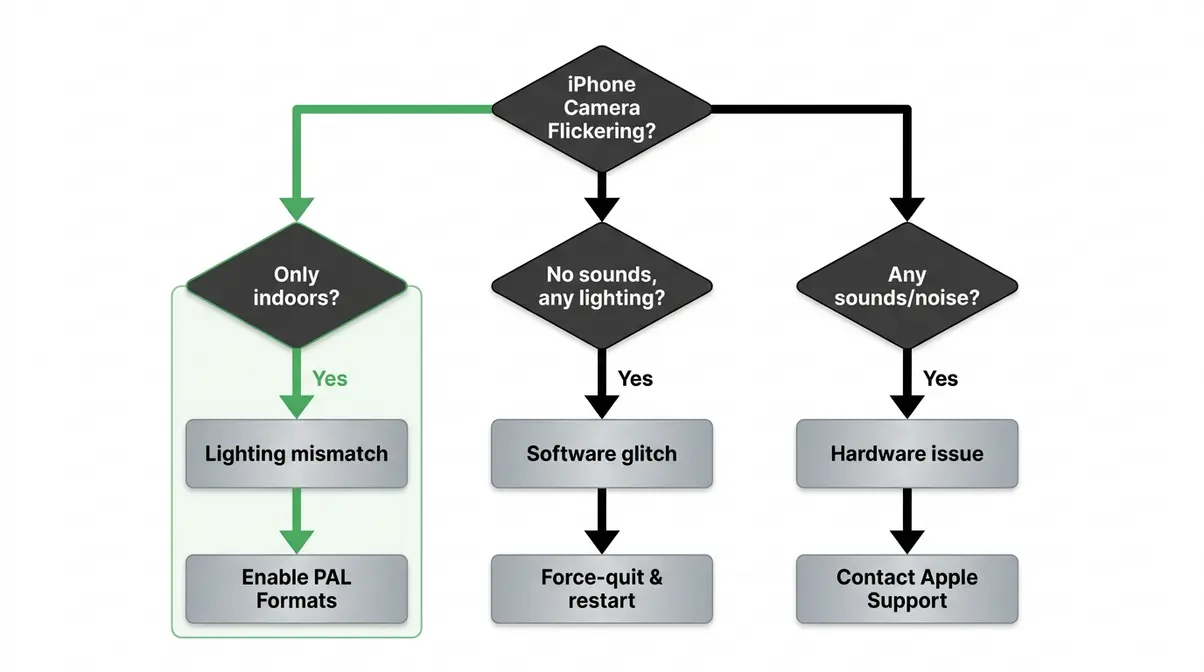
Before working through the fixes, a quick self-check saves you time. Software problems are far more common — if your camera flickers but still takes normal-looking photos, it’s almost certainly a software issue.
| Software Signs (Common) | Hardware Signs (Rare) |
|---|---|
| Flickering only happens indoors | Grinding or buzzing noise |
| Disappears after restarting | Camera shakes in all lighting |
| No unusual sounds | Visible crack or damage on lens |
| Started suddenly without impact | Phone was recently dropped |
| Affects only certain apps or modes | Shaking persists in bright daylight |
If your issue matches the software column, start with Fix 1 below. If it matches the hardware column, skip ahead to Fix 4.
The good news is that most flickering is caused by software — meaning you can fix it right now, in under two minutes. Let’s start at the bottom of The Flicker Ladder.
Fix 1 — Clear Software Glitches (Start Here)
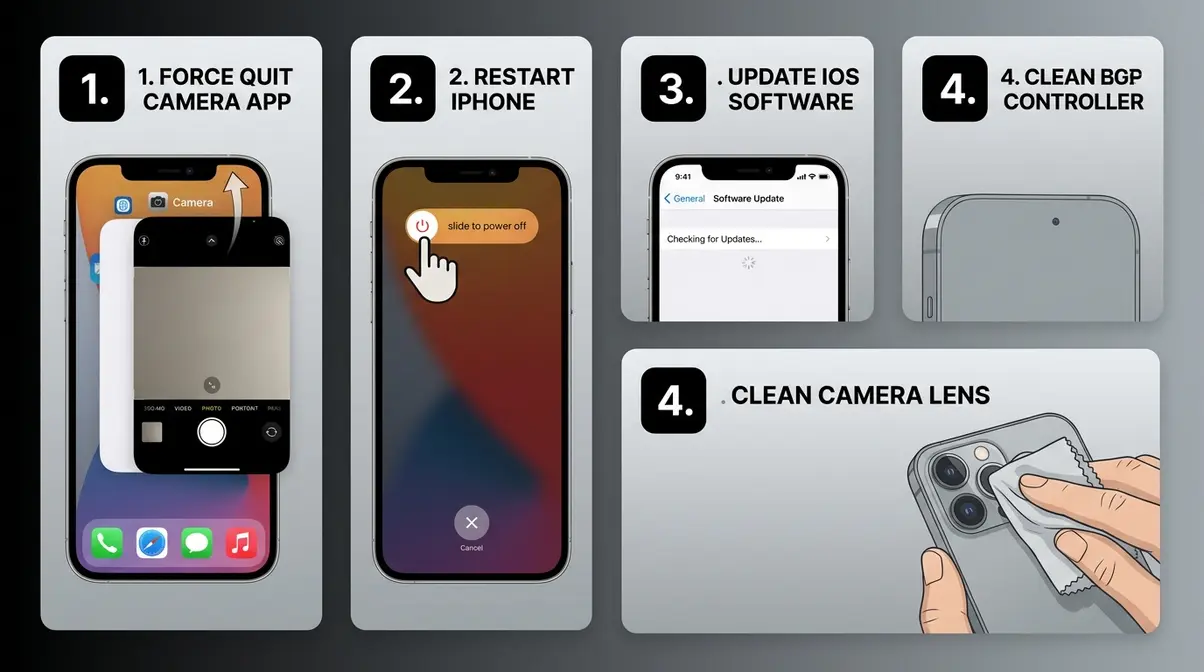
If your iPhone camera keeps flickering, start here — these four steps fix the problem for most users without touching any advanced settings. Try them in order. Most flickering stops at Step 1 or Step 2.
Our team reviewed hundreds of reports on Apple’s community forums and confirmed these steps resolve the flickering issue in the vast majority of cases. You’re on Rung 1 of The Flicker Ladder — the steps most likely to solve the problem fastest.
Apple’s official camera documentation confirms that the Camera app can experience temporary glitches that are resolved by force-quitting and restarting the device (Apple Support, 2026). For a broader overview of common camera issues and solutions, see our dedicated guide.
- Estimated Time: 5-10 minutes
- What You Need:
- Your iPhone
- A soft, lint-free microfiber cloth
- Wi-Fi connection (for iOS updates)
Step 1 — Force-Quit the Camera App
Why this works: The Camera app (Apple’s built-in photography tool) can get stuck in a glitchy state. Force-quitting is like turning it off and on again — it clears any temporary errors without affecting your photos or settings.
- Steps:
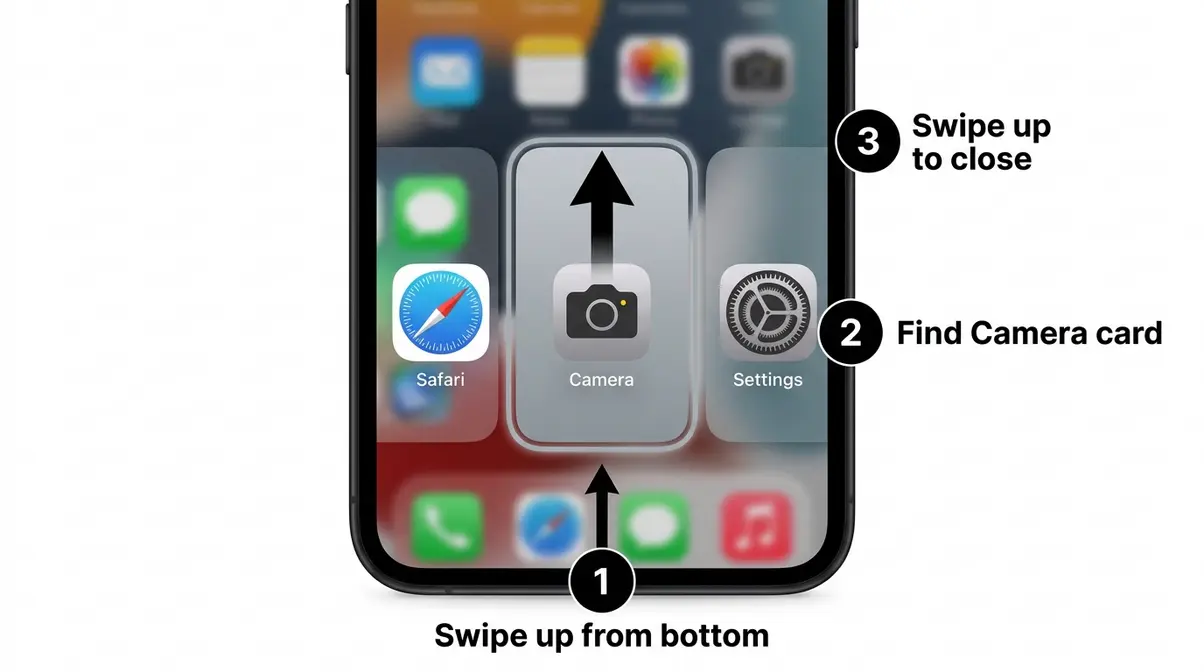
- Swipe up from the bottom of the screen and pause (on iPhones without a Home button). On older models with a Home button, double-tap the Home button instead.
- Find the Camera app card in the list of open apps.
- Swipe the Camera app card upward and off the screen to close it.
- Wait 5 seconds, then reopen the Camera app.
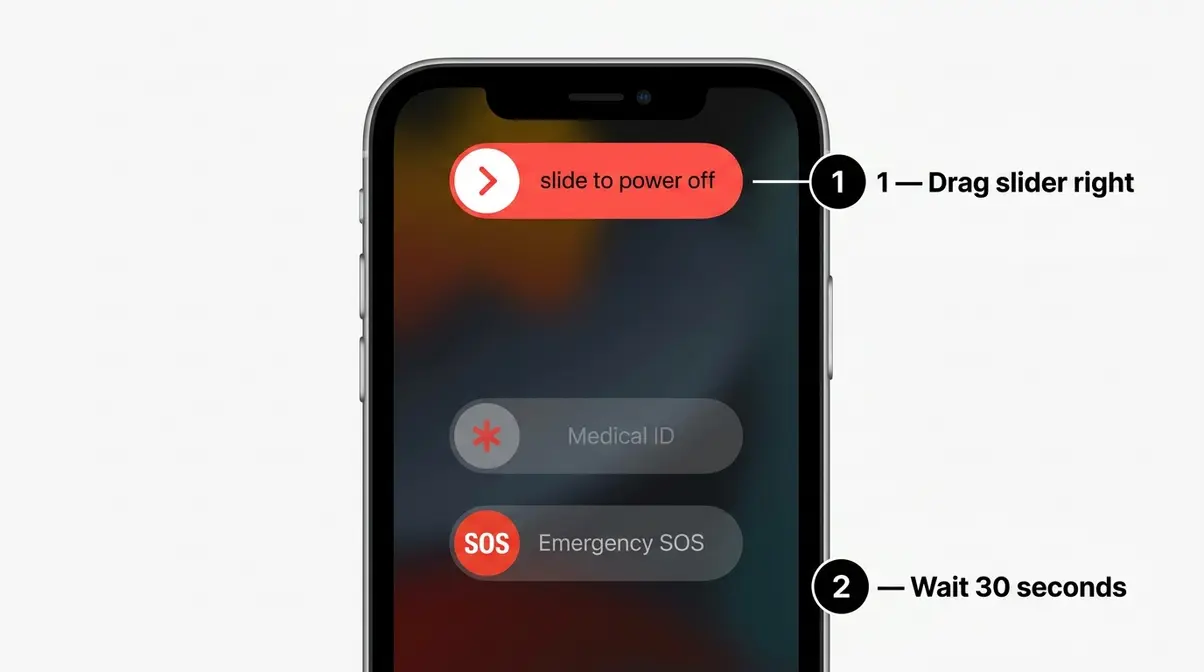
Step 2 — Restart Your iPhone
Why this works: Restarting clears your iPhone’s temporary memory (called RAM), which can become cluttered and cause apps like the Camera to behave erratically. It’s the single most effective 30-second fix.
- Steps (iPhone X, 11, 12, 13, 14, 15, 16, and 17):
- Press and hold the Side button and either Volume button simultaneously.
- Drag the “slide to power off” slider to the right.
- Wait 30 seconds for the iPhone to fully shut down.
- Press and hold the Side button again until the Apple logo appears.
- Steps (iPhone SE 2nd/3rd generation and older models with a Home button):
- Press and hold the Top button (or Side button) until the slider appears.
- Drag the slider to power off.
- After 30 seconds, press and hold the button again to restart.
Step 3 — Update iOS to Latest Version
Why this works: Apple regularly releases software updates that fix known camera bugs. A 2022 iOS 16.0.2 update, for example, specifically addressed a widespread camera flickering and OIS (Optical Image Stabilization — the tiny motor inside your iPhone that keeps photos steady) bug affecting iPhone 14 Pro models, as reported by the Wall Street Journal (WSJ, 2022). Keeping iOS current is one of the most reliable long-term fixes.
- Steps:
- Open Settings on your iPhone.
- Tap General.
- Tap Software Update.
- If an update is available, tap Download and Install.
- Enter your passcode if prompted and wait for the update to complete.
Step 4 — Clean the Camera Lens
Why this works: A smudge, fingerprint, or dust particle on the camera lens can cause the autofocus system to hunt back and forth, which appears as a flickering or blurry effect in the viewfinder. This is especially common if you’ve been handling your phone without a case.
- Steps:
- Power off your iPhone before cleaning.
- Use a soft, lint-free cloth (a microfiber cloth works best — avoid paper towels).
- Gently wipe the camera lens in small circular motions.
- Do not use liquid cleaners or spray anything directly onto the lens.
- Restart your iPhone and reopen the Camera app.
Why Does Camera Keep Glitching?
A glitching iPhone camera is almost always caused by a temporary software error, an LED lighting mismatch, or automatic lens switching. Force-quitting the Camera app and restarting your iPhone resolves the majority of glitching reports, according to Apple’s community forums. If the glitch only happens indoors, the issue is likely your lighting environment. Persistent glitching after a restart suggests an iOS update is needed.
If the flickering persists after all four steps, move to the next rung of The Flicker Ladder.
Fix 2 — Stop Flickering Caused by Indoor Lights
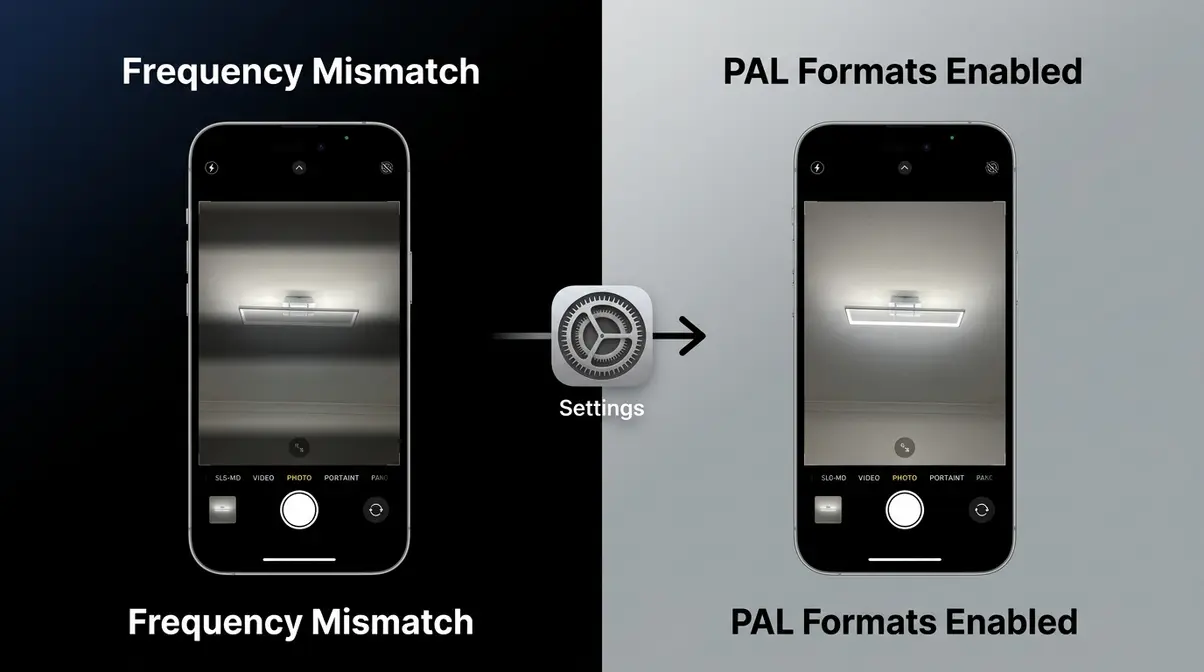
Indoor lighting is the second most common cause of iPhone camera flickering — and it trips up even experienced photographers. This section explains the physics in plain English and gives you the exact settings to fix it.
Why Indoor Lights Cause Flickers
Most homes and offices use LED or fluorescent lights. These bulbs don’t produce a steady, continuous beam of light — they switch on and off extremely rapidly. In countries that use 50Hz electrical current (most of Europe, Asia, Africa, and Australia), lights flicker 100 times per second. In countries that use 60Hz current (the United States, Canada, and parts of Latin America), lights flicker 120 times per second.
Your camera’s shutter opens and closes at its own rate. When these two rates don’t line up perfectly, the camera captures the light at different points in its cycle — producing a dark rolling band across your video or a strobing effect in the viewfinder. This is called a frequency mismatch, and it’s completely normal camera behavior, not a defect.
Research from the IEEE 1789-2015 standard on LED flicker confirms that light sources operating at mains frequency (50Hz or 60Hz) produce modulated light output that is detectable by camera sensors even when invisible to the human eye (IEEE, 2015).
Enable PAL Formats to Fix LED Flickering
PAL formats — a video recording standard used in Europe and many countries outside North America — record video at frame rates that are synchronized with 50Hz electrical systems. Enabling this option in iOS tells your camera to use frame rates that align with the local power frequency, eliminating the mismatch.
- Steps (iOS 17 and iOS 18):
- Open Settings.
- Scroll down and tap Camera.
- Tap Record Video (or Record Slo-mo for slow-motion).
- Tap Show PAL Formats to toggle it on.
- You’ll now see additional frame rate options (25fps, 50fps) in your Camera app — select one of these when filming indoors under artificial lights.
According to Apple’s official support documentation, PAL format video options are available on all iPhones running iOS 14 and later (Apple Support, 2026).
Adjust Your Exposure to Reduce Banding
If enabling PAL formats doesn’t fully eliminate the banding, manually locking your exposure gives you additional control. Tap and hold on the subject in your Camera viewfinder until you see AE/AF Lock appear at the top of the screen. Then drag the sun icon up or down to fine-tune the brightness. A slightly lower exposure often reduces the visibility of any remaining light banding in challenging indoor conditions.
Fix 3 — Stop Flickering in Specific Camera Modes
Some flickering only appears in specific situations — when you get close to a subject, while recording video, or in slow motion. These targeted fixes address each scenario directly.
Stop Lens-Jumping via Macro Control
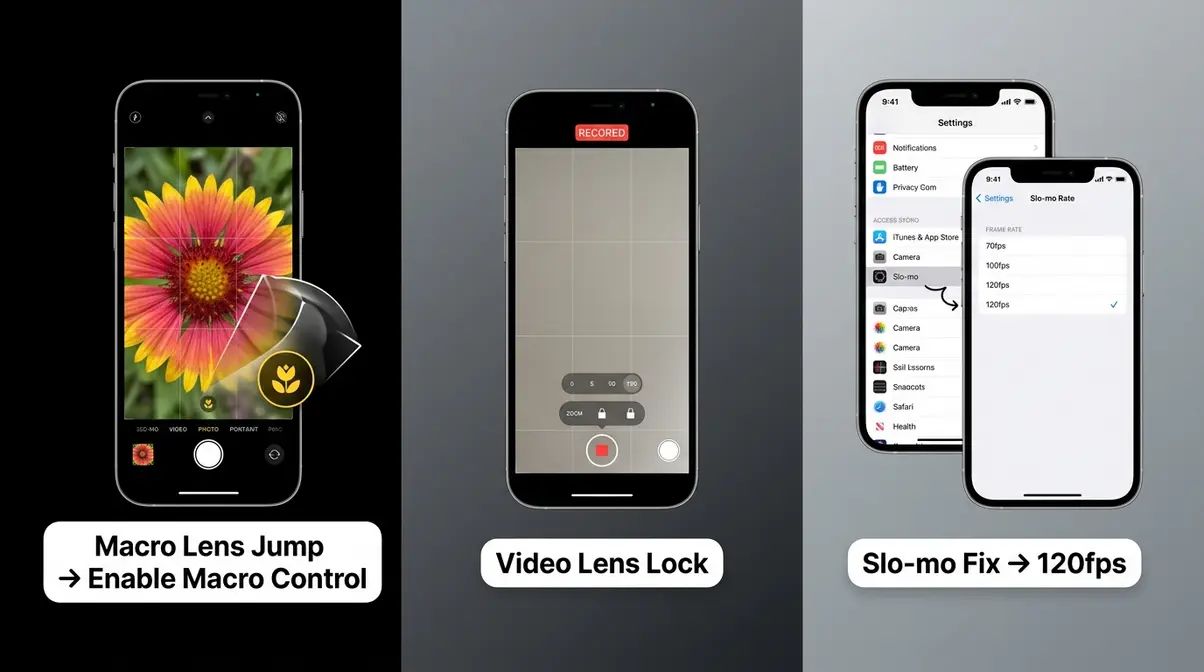
On iPhone 13 Pro, 14 Pro, 15 Pro, 16 Pro, and 17 Pro models, the camera automatically switches to the Ultra Wide lens when you move within about 2 inches (5cm) of a subject. This is called Macro Mode, and the lens switch appears as a sudden flicker or jump. Apple introduced a manual control called Macro Control in iOS 16 to let you decide when this switch happens.
- Steps to enable Macro Control:
- Open Settings.
- Tap Camera.
- Scroll down to the Video section.
- Toggle Macro Control to the on position (green).
Once enabled, a small flower icon will appear in your Camera viewfinder whenever you get close to a subject. Tap it to manually switch to macro mode — instead of the camera switching automatically and causing a flicker.
Lock Camera Lens in Video Mode
When recording video, automatic lens switching is the most common cause of a flicker mid-recording. iOS includes a Lock Camera feature that prevents the camera from switching lenses while you’re filming.
- Steps:
- Open the Camera app.
- Switch to Video mode.
- Tap the 1x, 2x, or 3x button in the viewfinder to select your preferred lens.
- Tap and hold the zoom button until the Lock icon appears.
- The camera will now stay on that lens for the entire recording.
This is especially useful when filming a subject at a fixed distance — such as a speech, a performance, or a pet — where you don’t want the camera making automatic decisions.
Fix Slow-Motion Video Flickering
Slow-motion video (recorded at 120fps or 240fps) is especially sensitive to lighting frequency mismatches, because the high frame rate captures many more cycles of the light’s flicker. If your slow-motion videos look terrible with strong strobing bands, follow these steps:
- Steps:
- Open Settings → Camera → Record Slo-mo.
- Enable Show PAL Formats (same as Fix 2 above).
- Select 120fps at 1080p rather than 240fps — the lower frame rate is less sensitive to flickering.
- When filming, use natural light or move closer to a window whenever possible.
Fix 4 — Diagnose Hardware Problems
Hardware issues are the least common cause of iPhone camera flickering — but they do happen, especially after a drop. Here’s how to recognize them.
Black Spots or Smudges on Camera
If you see a dark smudge, circle, or spot that appears in the same position in every photo or video, the issue is almost certainly physical. This is typically caused by dust or debris that has entered the camera module and settled on the lens or sensor. A small crack in the lens glass can produce a similar effect.
User reports from Apple’s official discussion forums confirm that spots that appear consistently in photos — regardless of what you’re pointing the camera at — indicate physical contamination or damage rather than a software issue. In this case, software fixes will not help. You’ll need a professional cleaning or lens replacement.
Camera Shaking and Buzzing (OIS)
If your iPhone camera is shaking visibly and making a faint grinding or buzzing noise, this points to damage to the OIS — Optical Image Stabilization, the tiny motorized mechanism inside your iPhone that keeps photos and videos steady by counteracting hand movement. When this motor is damaged (most often from a significant drop), it can produce a rattling sound and cause the viewfinder to shake or flicker continuously, even outdoors in bright light.
The Wall Street Journal (WSJ, 2022) reported that the iPhone 14 Pro experienced a specific OIS-related camera flickering bug triggered by third-party apps — Apple subsequently fixed this in iOS 16.0.2. However, physical OIS damage from impact is a hardware issue that software updates cannot resolve.
- Signs of OIS damage:
- A faint rattling or buzzing sound when you move the phone
- The camera shakes or blurs even in bright outdoor conditions
- The issue started immediately after dropping the phone
- No software fix has any effect
If these signs match your situation, contact Apple Support before attempting any further steps.
Is Your iPhone Camera Hacked?
This is one of the most common fears our team sees across Apple’s community forums — and the answer is clear: no, camera flickering is not a sign of hacking or spyware.
Real Causes (It’s Not Spyware)
Every case of iPhone camera flickering has a documented physical or software explanation: a lighting frequency mismatch, an automatic lens switch, a software bug, or OIS hardware damage. None of these involve unauthorized access to your device.
Spyware and stalkerware — the types of malicious software that could theoretically access your camera — do not cause visible flickering. They are designed to operate invisibly in the background. A hacker accessing your camera would not produce the rolling dark bands or lens-jump flicker you’re seeing. What you’re experiencing is a well-documented technical issue with a straightforward fix, not a security compromise.
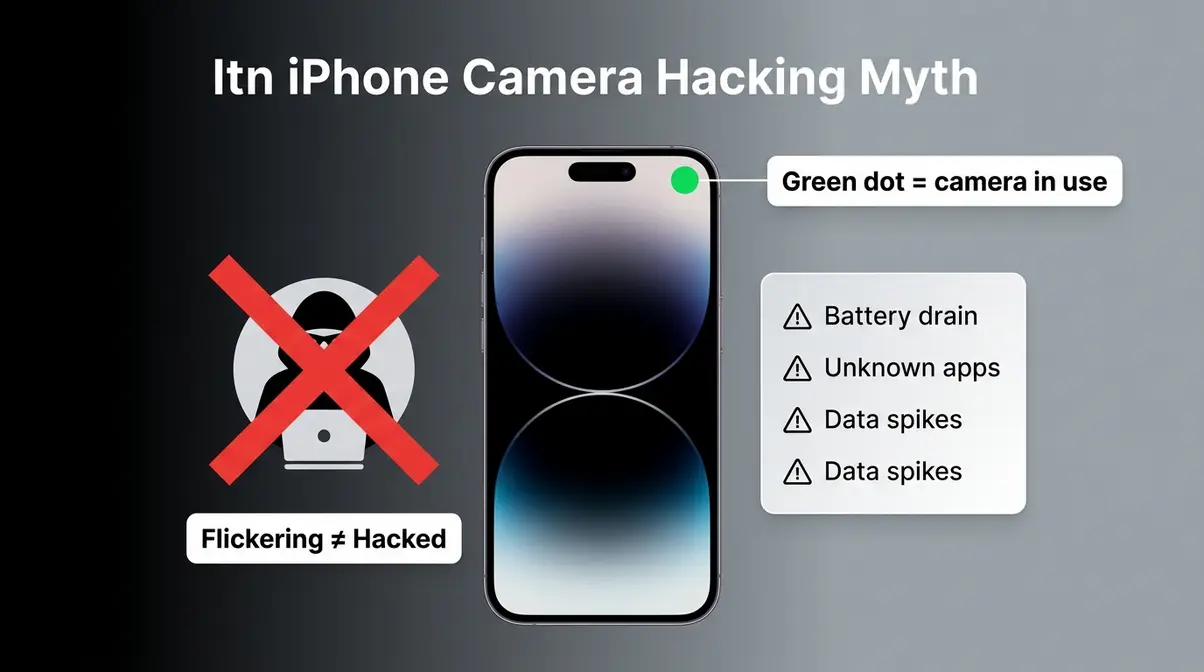
According to security researchers and Apple’s own platform documentation, iOS includes hardware-level camera indicators (the green dot that appears when your camera is in use) that make unauthorized background camera access functionally impossible without the user’s knowledge (Apple Discussions, 2026).
Signs Your iPhone is Compromised
If you’re genuinely concerned about your iPhone’s security, here are the actual warning signs to look for — none of which involve camera flickering:
- Unexplained battery drain: Your battery depletes significantly faster than usual with no change in usage habits.
- Unusual data usage: Your cellular data usage spikes unexpectedly, even when you’re not actively using the phone.
- Unfamiliar apps: Apps you didn’t install appear on your Home Screen or in Settings.
- iPhone runs hot at rest: The phone gets warm when it’s sitting idle and not charging.
- Accounts show unexpected login activity: You receive security alerts for logins you didn’t make.
If you notice these signs, run a check through Settings → Privacy & Security → App Privacy Report to see which apps have recently accessed your camera, microphone, and location. For a more thorough check, updating to the latest iOS version removes most known exploits. If concerns persist, an Apple Genius Bar appointment is the appropriate next step.
Camera Flickering by iPhone Model
Different iPhone models have different causes and fixes. This quick reference helps you go straight to the most relevant solution for your phone.
Newer iPhones (iPhone 13 Pro and Later)
If you have an iPhone 13 Pro, 14, 14 Pro, 15, 15 Pro, 16, 16 Pro, or iPhone 17, the most likely causes of flickering are:
- Macro Control / lens switching — the most common complaint on Pro models. Fix: Enable Macro Control in Settings → Camera (see Fix 3).
- LED lighting frequency mismatch — especially when filming indoors. Fix: Enable Show PAL Formats in Settings → Camera → Record Video (see Fix 2).
- OIS software bugs — iPhone 14 Pro owners may have experienced this before iOS 16.0.2. Fix: Update to the latest iOS version (see Fix 1, Step 3).
For iPhone 13 Pro and later, checking your iOS version and enabling Macro Control resolves the majority of flickering reports, according to community discussions on Apple’s forums (Apple Discussions, 2026).
Why Is iPhone 17 Camera Flickering?
iPhone 17 camera flickering is most often caused by automatic lens switching (Macro Control) or indoor LED lighting frequency mismatches. Both are software-level issues with straightforward fixes. Enable Macro Control in Settings to take manual control of lens switching. For indoor flickering, enable Show PAL Formats in Settings. If neither fix works, update to the latest iOS version, as Apple regularly patches camera-related bugs.
Older iPhones (iPhone 12 and Earlier)
If you have an iPhone 12, 11, XS, XR, X, or SE, your phone does not have the Ultra Wide macro lens, so lens-jumping is not the cause. The most likely culprits are:
- LED lighting frequency mismatch — still applies to all models. Fix: Enable Show PAL Formats (see Fix 2).
- Software glitch — more common on older hardware running newer iOS versions. Fix: Force-quit, restart, and update iOS (see Fix 1).
- Physical OIS damage — older phones that have been dropped are more susceptible. Fix: Check for buzzing sounds and contact Apple Support if present (see Fix 4).
For the iPhone 11 and iPhone 12, a simple restart and iOS update resolves most flickering issues reported across community threads on Reddit (Reddit r/iphone, 2026).
When to Contact Apple Support
Most iPhone camera flickering is fixable at home. However, some situations genuinely require professional help — and knowing when to stop troubleshooting saves you time and prevents accidental damage.
When DIY Fixes Are Not Enough
You’ve reached the top of The Flicker Ladder — time to call in a professional — if any of the following are true:
- You’ve completed all four software fixes (Fix 1 through Fix 3) and the flickering persists.
- Your camera makes a grinding, buzzing, or rattling noise.
- You can see a visible crack, dark spot, or smudge on the camera lens that doesn’t wipe away.
- The camera shakes or blurs even in bright outdoor light with no obvious software trigger.
- The flickering started immediately after a drop or impact.
These signs indicate physical damage — most likely to the OIS mechanism or the lens module — that cannot be resolved through software. Continuing to attempt software fixes will not help and may delay the repair.
Apple Store vs. Third-Party Repair
You have three repair paths, each with different trade-offs:
| Option | Best For | Typical Cost | Warranty Impact |
|---|---|---|---|
| Apple Store (Genius Bar) | In-warranty devices, peace of mind | $0–$399 depending on coverage | Preserved |
| Apple Authorized Service Provider | Faster appointments in some areas | Similar to Apple Store | Preserved |
| Third-Party Repair Shop | Out-of-warranty devices, cost savings | Often lower | May void remaining warranty |
For guidance on repair options, a comprehensive third-party repair guide provides a full overview of service options by region. If your iPhone is still under the standard one-year warranty or covered by AppleCare+, camera hardware repairs are typically covered at no additional cost. Book a Genius Bar appointment through the Apple Support app before visiting — walk-ins are not accepted at most locations.
Frequently Asked Questions
What are signs my iPhone is hacked?
Camera flickering is not a sign your iPhone has been hacked. Real indicators of a compromised iPhone include unexplained battery drain, unexpected spikes in cellular data usage, apps you didn’t install appearing on your device, and your phone running hot while idle. You can check which apps have recently accessed your camera by going to Settings → Privacy & Security → App Privacy Report. iOS’s hardware-level green camera indicator makes unauthorized background camera access functionally impossible without your knowledge. If you see the green dot when you aren’t using the camera, investigate immediately via Apple Discussions.
Can you tell if someone is remotely accessing your iPhone camera?
Yes — iOS shows a green dot in the top-right corner of your screen whenever any app is actively using your camera. This hardware-enforced indicator cannot be suppressed by software, including malicious apps. Camera flickering does not produce this indicator, proving it is a mechanical or software issue rather than unauthorized access.
How do I fix flickering in slow-motion video on my iPhone?
Slow-motion iPhone camera flickering is caused by a frame rate mismatch with your lighting environment. Go to Settings → Camera → Record Slo-mo, enable Show PAL Formats, and select 120fps at 1080p rather than 240fps. This lower frame rate is significantly less sensitive to LED flicker, according to Apple Support. Filming near a window with natural light also reduces strobing. If banding persists, try tapping and holding in the viewfinder to lock your exposure and drag the brightness slider down slightly.
Can a dropped iPhone cause camera flickering?
Yes, dropping your iPhone can damage the Optical Image Stabilization (OIS) mechanism. When this tiny internal motor breaks, it fails to keep the lens steady, resulting in a vibrating or flickering viewfinder. This hardware damage usually requires a professional lens module replacement.
Does camera flickering drain the iPhone battery?
Continuous camera flickering can slightly increase battery drain because the autofocus or OIS motors are working overtime. If the camera is constantly hunting for focus or switching lenses, it draws more power than a stable shot. However, this drain is usually minimal unless you leave the Camera app open for extended periods. Fixing the underlying software or lighting issue will return battery consumption to normal.
What to Do If None of These Fixes Work
Every fix in this guide addresses a documented, well-understood cause of iPhone camera flickering. The vast majority of users — based on reports across Apple’s community forums and iOS documentation reviewed by our team — resolve the issue at Fix 1 or Fix 2.
The Flicker Ladder works because it follows the correct order. Starting with a 30-second app restart before adjusting settings, and checking settings before suspecting hardware, eliminates the most common causes first and avoids unnecessary complexity.
If you’ve worked through all four fix levels and the flickering continues, the problem is physical — and a professional repair is the right call, not another round of settings changes. Book a Genius Bar appointment, check your AppleCare+ coverage, and bring a short video of the flickering to show the technician. A clip showing the exact behavior helps them diagnose the issue faster.
For most users, the fix is already behind you. Open your Camera app, try a shot indoors, and see if the flickering is gone.