What Is Photo Metadata? EXIF, Privacy & How to Remove It
What is photo metadata? This comprehensive guide covers types of metadata, how it works, privacy risks, editing tools, and practical uses for photographers.

Every photo you take silently records far more than the image itself. The selfie you snapped this morning carries a hidden digital trail — your exact GPS location, your phone model, the precise timestamp, and more — all bundled invisibly into the file. Most people never know it’s there.
What’s in this guide
- What Is Photo Metadata? (The Simple Definition)
- Types of Photo Metadata: EXIF, IPTC, XMP
- How to View Photo Metadata on Any Device
- Managing Photo Metadata for Privacy and Security
- Metadata Beyond Photos: HTML, AI, and Databases
- Common Misconceptions and Limitations
- Frequently Asked Questions
- Conclusion
Here’s what makes that alarming: every photo you’ve ever shared online may have already revealed your home address, daily routine, or workplace location — without you ever knowing. That hidden data travels with the image wherever it goes.
Understanding what is photo metadata — and how to control it — is one of the most practical privacy skills you can develop today. In this guide, you’ll learn exactly what photo metadata is, what it reveals, and the simple steps you can take on any device to view and remove it. No technical experience required. We’ll cover the plain-English definition, the three types of hidden data, step-by-step tutorials for iOS, Android, Windows, and Mac, and how to protect your privacy before your next share.
What Is Photo Metadata? (The Simple Definition)
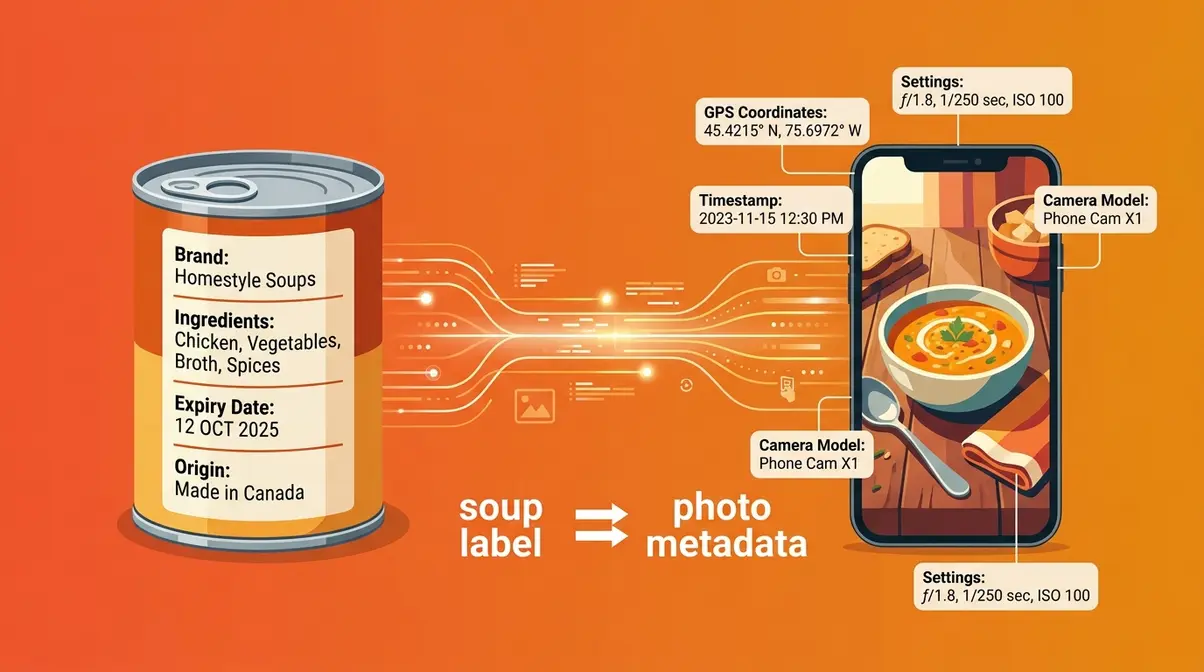
Photo metadata is hidden information embedded in every digital image file, automatically recording details like where a photo was taken, what camera captured it, and when the shutter clicked. Think of it as a digital label attached to your photo — invisible in the image itself, but readable by any device or app that knows where to look.
This isn’t a special feature reserved for professional photographers. Every smartphone snapshot, every casual selfie, every screenshot you’ve taken has metadata attached to it by default. The question isn’t whether your photos have it — they all do. The question is what it contains and who can read it.
What Does “Data About Data” Actually Mean?
Metadata is, literally, data that provides information about other data. According to the NIST definition of metadata, metadata includes properties like size, resolution, creation date, and GPS location of a digital file (NIST, 2026). That definition sounds technical, but the everyday version is simple.
Think of a can of soup. The soup itself is the content — what you actually consume. The label on the outside tells you the ingredients, the brand, the expiry date, and where it was manufactured. You can’t see any of that information by looking at the soup. Photo metadata works exactly the same way. The photo is the soup. The metadata is the label — and it tells anyone who reads it far more than the image alone ever could.
What that label records in a digital photo includes the date and time the photo was taken, the GPS location, the camera make and model, the resolution, and the camera settings used. Every digital photo has this label attached. It doesn’t matter whether you used a $1,500 DSLR or a five-year-old smartphone — the metadata is there.
Why does this matter to you? Because that label travels with your photo every time you send, share, or upload it — unless you deliberately remove it first.
You can learn about photo metadata fundamentals to dig deeper into how this data is structured across different file formats.
Why Your Camera Attaches Metadata Automatically
Camera manufacturers designed metadata recording as a helpful organizational tool. The idea was practical: if you’re a photographer with 10,000 images, metadata lets you sort them automatically by date, location, or camera settings. It was never intended as surveillance — but the privacy implications are very real.
Smartphone cameras go further than dedicated cameras. Because your phone’s location services run constantly in the background, every photo you take gets tagged with precise GPS coordinates — the exact latitude and longitude of where you were standing. A photo taken at home records your home’s location with enough precision to identify your street address.
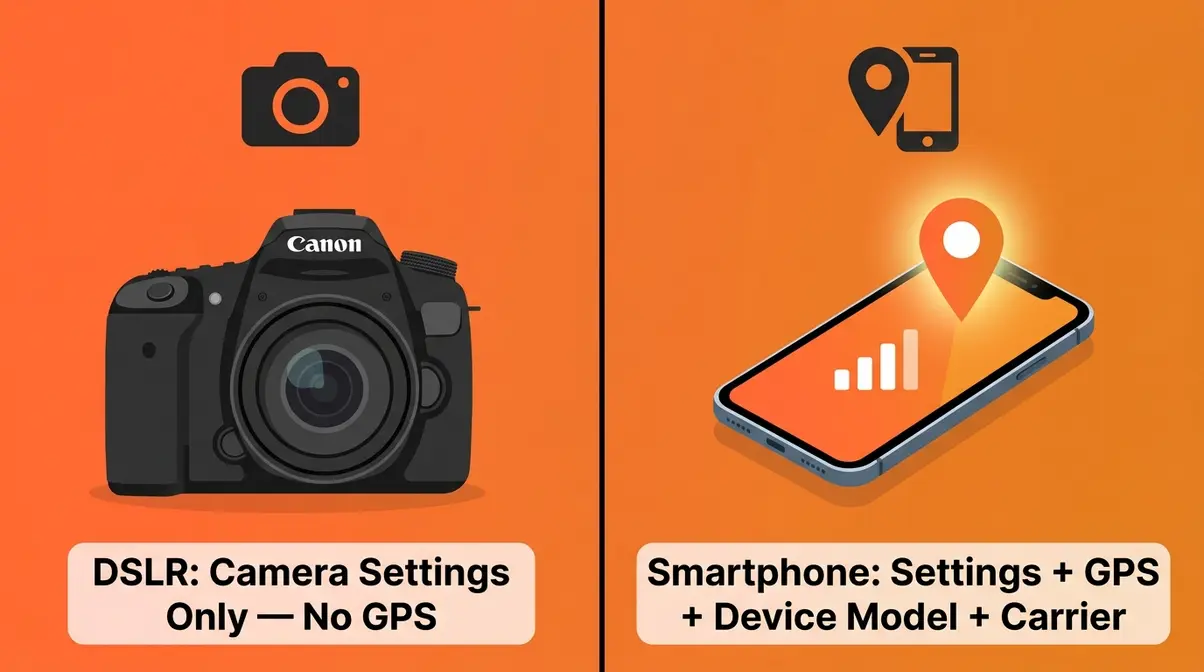
Here’s the counter-intuitive part: smartphones embed MORE metadata than professional DSLR cameras, precisely because they’re always location-aware. A Canon DSLR without a GPS attachment records camera settings but no location. Your iPhone records both — plus your device model, your carrier, and your iOS version.
The selfie you took in your kitchen this morning likely contains your home’s GPS coordinates, the exact time down to the second, your phone model, and which camera lens was used. That’s all sitting invisibly in the file right now.
As for the metadata for a photo, it is created automatically by the device’s firmware — you never have to do anything to create it. It’s on by default (New York Times, 2018 — GPS embedding behavior confirmed consistent across current iOS 17 and Android 14 versions).
Why Photo Metadata Matters
Understanding what is photo metadata is only step one. Here’s why it actually affects your daily life:
- Privacy: GPS data embedded in shared photos can reveal your home address, workplace, or daily routine to anyone who downloads the image and checks its properties. This is the risk that matters most for everyday smartphone users. The UC Berkeley Information Security Office warns that sharing photos online without removing GPS location metadata can inadvertently expose sensitive information, including your home address — and you’d never know it happened (UC Berkeley’s warning on metadata privacy risks, UC Berkeley, 2026).
- Organization: For photographers, metadata powers the automatic albums, location maps, and “Memories” features in Apple Photos and Google Photos. It’s genuinely useful — when it stays on your own device.
- Copyright: The IPTC data layer stores the photographer’s name and copyright notice. Professional photographers rely on this to prove ownership of their work. Removing metadata can accidentally strip this protection.
The trade-off is clear: metadata is useful for personal organization, but potentially dangerous when shared publicly. Knowing when to keep it and when to remove it is the skill this guide gives you.
Now that you understand what photo metadata is and why it matters, let’s break down the three specific types — and identify exactly which one you need to worry about most.
Types of Photo Metadata: EXIF, IPTC, XMP
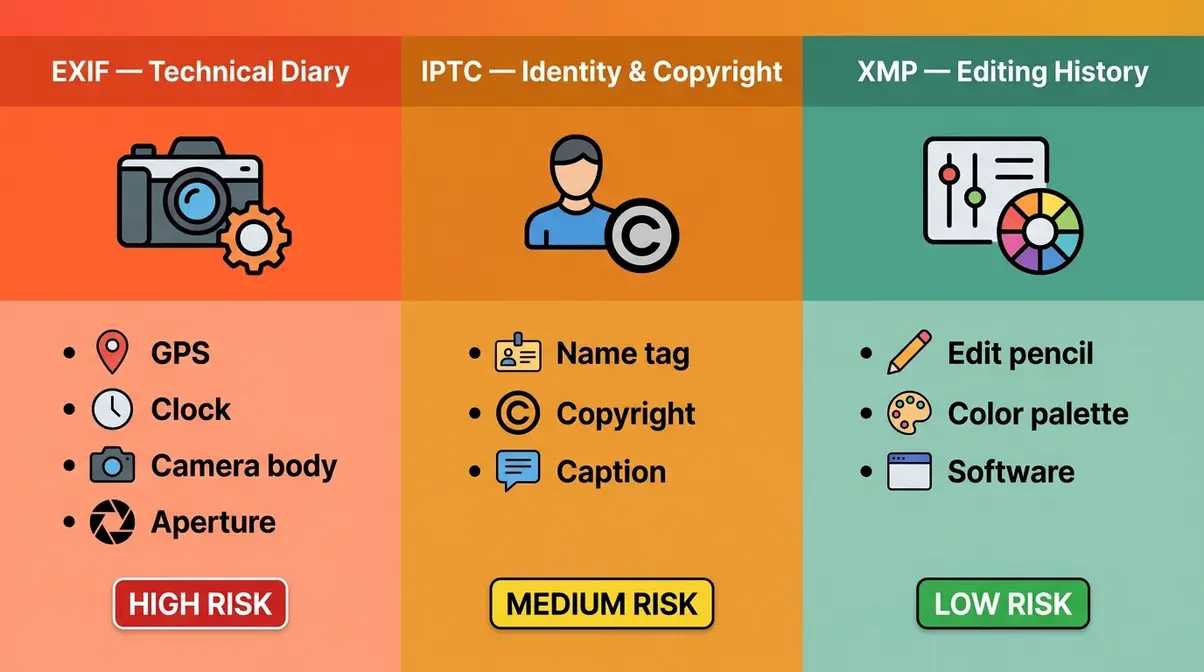
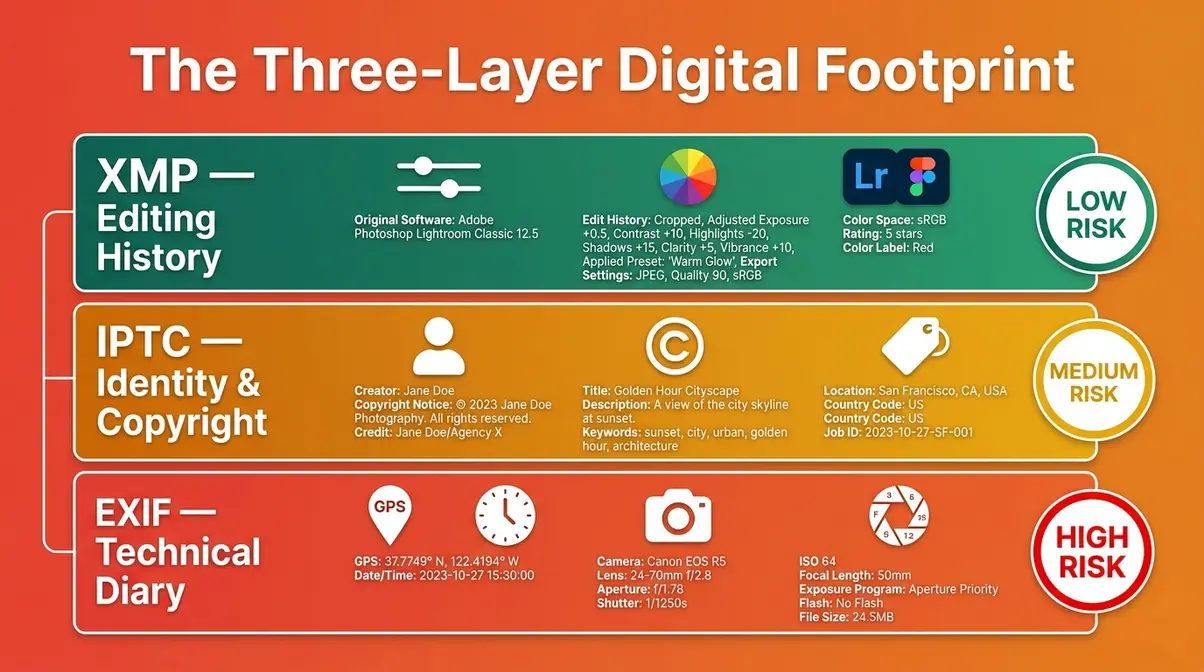
Every photo’s hidden data isn’t one undifferentiated blob of information. It’s organized into three distinct layers — what we call The Three-Layer Digital Footprint. Each layer serves a different purpose, stores different information, and carries a different level of privacy risk.
EXIF Data: Your Camera’s Technical Diary
EXIF data (short for Exchangeable Image File Format — the technical diary your camera keeps automatically) is the most important layer for privacy-conscious users. It’s also the most information-rich.
EXIF stores everything your camera’s internal computer recorded at the moment the shutter clicked. This includes:
- Date and time — precise to the second
- GPS coordinates — precise latitude and longitude data pinpointing exactly where a photo was taken
- Camera make and model — “Apple iPhone 15 Pro” or “Canon EOS R6”
- Lens information — focal length, aperture, whether flash fired
- Exposure settings — ISO speed, shutter speed, white balance mode
GPS coordinates are the highest-risk piece of EXIF data. A single coordinate pair can be entered into any mapping app to reveal the exact location where a photo was taken — your home, your child’s school, a domestic violence shelter. This isn’t theoretical. Digital forensics and OSINT (open-source intelligence) investigators routinely use EXIF GPS data to identify locations from published photos.
Why does this matter to you? Because every photo you upload to a personal blog, a dating app, or a community forum may be carrying your home address in its EXIF layer — readable by anyone who downloads it.
Canon Europe’s technical documentation confirms that EXIF data is recorded by all digital cameras as a mandatory part of the image file format (Canon Europe’s EXIF overview, Canon, 2026).
IPTC Data: Copyright & Identity
IPTC data (named after the International Press Telecommunications Council that created the standard) is the identity and description layer. Where EXIF records technical facts about the moment of capture, IPTC records information about the photo’s content and creator.
IPTC fields include the photographer’s name, their copyright notice, a caption or description of what’s in the image, keywords for searchability, and the image’s original source. Professional photographers and news agencies rely heavily on IPTC to track image ownership and licensing across publications.
For everyday smartphone users, IPTC data is less of a privacy concern than EXIF — your phone doesn’t automatically fill in your name or copyright details. However, some social media management tools and photo editing apps write IPTC data when you add captions or tags. The IPTC Photo Metadata Standard provides the full technical specification for this layer (IPTC, 2026).
Why does this matter to you? If you’re a creator sharing photos professionally, IPTC is how your copyright travels with your image. Stripping all metadata indiscriminately can erase this protection.
XMP Data: The Modern, Flexible Standard
XMP (or Extensible Metadata Platform — the modern flexible standard developed by Adobe) is the newest of the three layers. Adobe introduced XMP in 2001 to solve a problem: EXIF and IPTC were rigid standards that couldn’t accommodate the growing complexity of digital editing workflows.
XMP stores editing history, color profile information, software version used for processing, and any custom metadata fields an application wants to add. When you edit a photo in Adobe Lightroom, apply a filter in a photo app, or export an image with specific color settings, XMP records what was done and when.
What is an example of metadata in a photo that lives in XMP? If you’ve ever edited a photo in Lightroom and noticed that reopening it later shows your exact slider adjustments — that’s XMP at work. The editing history is embedded in the file itself.
For most smartphone users, XMP is the least urgent privacy concern. It records editing actions rather than location or identity data. But it does reveal which apps you use and how you process your images — information that contributes to your broader digital footprint.
5 Real Examples of Photo Metadata
To make this concrete, here are five specific pieces of metadata you’d find in a typical smartphone photo taken at home:
- GPS Coordinates (EXIF) — Latitude 37.7749° N, Longitude 122.4194° W — precise enough to identify your specific address on a map
- Timestamp (EXIF) — 2026-03-14 08:23:47 — the exact date and time the photo was taken, down to the second
- Device Model (EXIF) — Apple iPhone 15 Pro, rear camera, 1x lens — reveals your exact phone model and which camera was used
- Camera Settings (EXIF) — ISO 64, f/1.78 aperture, 1/120s shutter speed — technical settings recorded automatically
- Copyright Notice (IPTC) — Photographer name and copyright year — relevant if you add this via editing software
| Metadata Type | What It Stores | Privacy Risk | Who Created the Standard |
|---|---|---|---|
| EXIF | Technical data: GPS, timestamp, camera model, settings | 🔴 High — especially GPS | Camera manufacturers (1995) |
| IPTC | Descriptive data: photographer name, copyright, captions | 🟡 Medium — identity info | Press Telecommunications Council |
| XMP | Editing data: software history, color profiles, custom fields | 🟢 Low — editing records | Adobe Systems (2001) |
Which type should you worry about most? EXIF — specifically the GPS coordinates field. This is the layer that can reveal where you live, work, or spend your time. IPTC and XMP carry lower day-to-day privacy risk for non-professional users.
The detailed breakdown of The Three-Layer Digital Footprint shows that these three layers work together — and that understanding them separately is the key to knowing exactly what to remove and what to keep.
How to View Photo Metadata on Any Device
Checking the hidden data in your photos is easier than you might think. Once you understand what is photo metadata, you don’t need special software or technical skills — every major platform has a built-in method. User consensus across photography communities indicates that most people are surprised to discover how much information is visible with just a few taps.
Before you start: These steps work on unedited original photos. If you’ve already shared a photo through a platform that strips metadata (like Instagram), the metadata will be gone from the downloaded version. Check your originals from your camera roll or photo library.
Methods vary by device model and operating system version. Always verify steps against your current OS version.
View Photo Metadata on iPhone
On iOS 17 and later, your iPhone shows basic metadata directly in the Photos app — no extra tools needed.
- Open the Photos app and tap the photo you want to inspect.
- Swipe up on the photo (or tap the info icon — the circled “i” at the bottom of the screen).
- An information panel slides up showing the date, time, and location where the photo was taken.
- Tap the map thumbnail to see the GPS location pinned on a map.
- For full EXIF data (camera settings, lens info, file size), tap “Adjust” then look at the metadata panel, or use a free app like Metapho from the App Store.

How to Find Photo Metadata on Android
Android 14 surfaces metadata through the Google Photos app or your default gallery.
- Open Google Photos and tap the photo you want to check.
- Tap the three-dot menu (top right corner) and select “Details” — or simply swipe up on the photo.
- A details panel shows the date, time, location, camera model, and file size.
- Tap the location to open it in Google Maps and see the exact GPS pin.
- For complete EXIF data including aperture and ISO, use a free app like Photo Exif Editor from the Google Play Store.

How to View Photo Metadata on Windows
Windows 11 makes it straightforward to view metadata without installing any software.
- Open File Explorer and navigate to the photo file.
- Right-click the photo and select “Properties” from the menu.
- Click the “Details” tab at the top of the Properties window.
- Scroll through the panel to see the full metadata list: GPS coordinates, camera make and model, date taken, dimensions, and camera settings.
- To remove metadata, click “Remove Properties and Personal Information” at the bottom of the Details tab — then follow the prompts (more on this in the next section).
How to Check Photo Metadata on Mac
macOS offers two quick methods for viewing image metadata without additional software.
- Method 1 — Preview (fastest):
- Open the photo in the Preview app (double-click any image file).
- Click Tools in the menu bar, then select “Show Inspector” (or press ⌘-I).
- Click the GPS tab to see location data, or the EXIF tab for full technical details.
- Method 2 — Photos App:
- Open the Photos app and select your image.
- Press ⌘-I or go to Image → Show Info in the menu bar.
- The info panel shows date, time, location, and camera details.
Free Online Tools to View Metadata
If you prefer not to install apps, several free browser-based tools let you upload a photo and see its full metadata instantly — without the file leaving your browser session.
- Jeffrey’s Exif Viewer (exifdata.com) — paste an image URL or upload a file; shows complete EXIF, IPTC, and XMP data in a readable format
- Pic2Map — displays GPS metadata on an embedded map, useful for visualizing exactly how precise your location data is
- ExifTool online — the browser version of the industry-standard command-line tool; shows every metadata field without software installation
Privacy note: When using online tools, choose tools that state they process files locally in your browser and don’t store uploaded images on their servers. Always read the tool’s privacy policy before uploading sensitive photos.
The TechTarget image metadata overview provides additional context on how metadata is structured across different file formats (TechTarget, 2026).
Managing Photo Metadata for Privacy and Security
This is where your digital footprint becomes a real-world concern. The hidden data in your photos doesn’t just sit quietly on your device — it travels with every image you share, post, or send. Understanding what gets shared, and how to stop it, is the core of photo metadata privacy awareness.
“One image can reveal way more than you think. 👀”
Common concerns reported by smartphone users include accidentally sharing their home address through photos posted to social media, not realizing that messaging apps sometimes preserve location data, and feeling unsure about whether popular platforms actually strip metadata before displaying images.
Privacy Risks: What Gets Shared
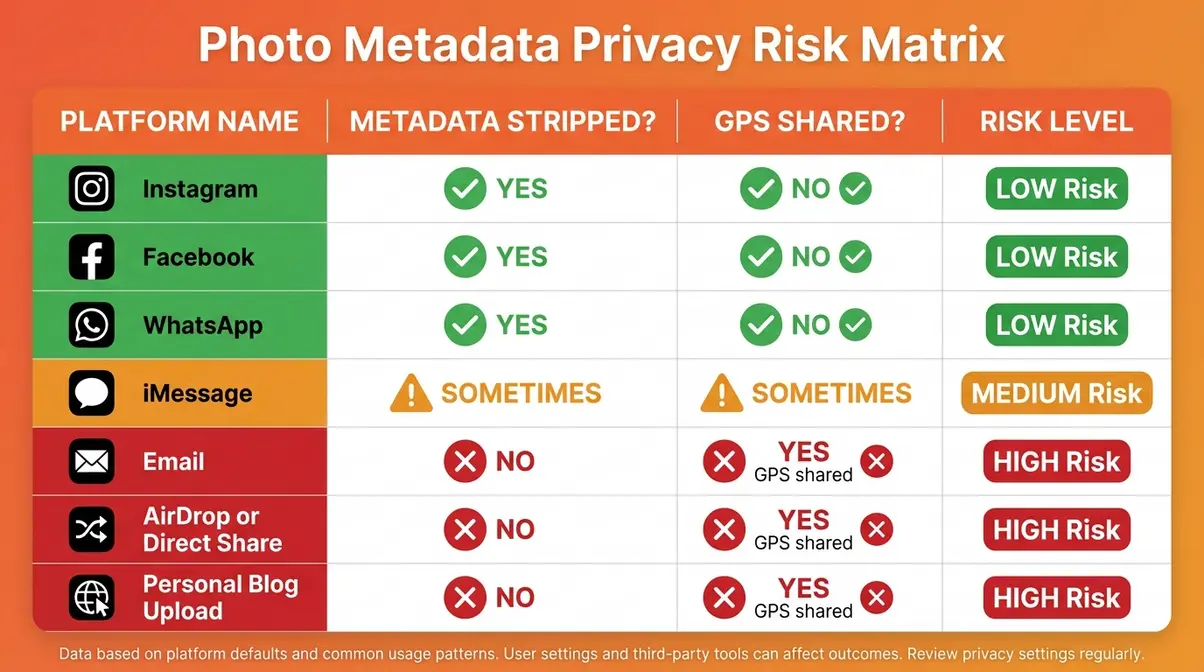
Not all sharing channels treat metadata the same way. Some platforms strip it automatically. Others pass it through intact. Knowing the difference protects you.
| Platform / Method | Metadata Stripped? | GPS Data Shared? | Notes |
|---|---|---|---|
| Instagram (upload) | ✅ Yes — stripped on upload | ❌ No | Instagram removes EXIF before displaying images |
| Facebook (upload) | ✅ Yes — stripped on upload | ❌ No | Metadata removed server-side |
| iMessage (sent to iPhone) | ⚠️ Partial | ✅ Sometimes yes | Full resolution sends may preserve metadata |
| Email attachment | ❌ No | ✅ Yes | Email sends the original file intact |
| ✅ Yes (compressed) | ❌ No | Compression process removes metadata | |
| Airdrop / direct file share | ❌ No | ✅ Yes | File sent as-is, all metadata intact |
| Personal blog / website upload | ❌ No (unless CMS strips) | ✅ Yes | Many CMS platforms preserve original file |
The highest-risk scenarios are email attachments and direct file transfers — these send your original photo file with every metadata layer intact. A photo emailed to a stranger includes your home’s GPS coordinates unless you strip it first.
The Stanford University IT documentation confirms that metadata embedded in shared files can expose sensitive personal information, particularly location data, to unintended recipients (Stanford University image metadata guidance, Stanford, 2026).
Remove Metadata Before Sharing
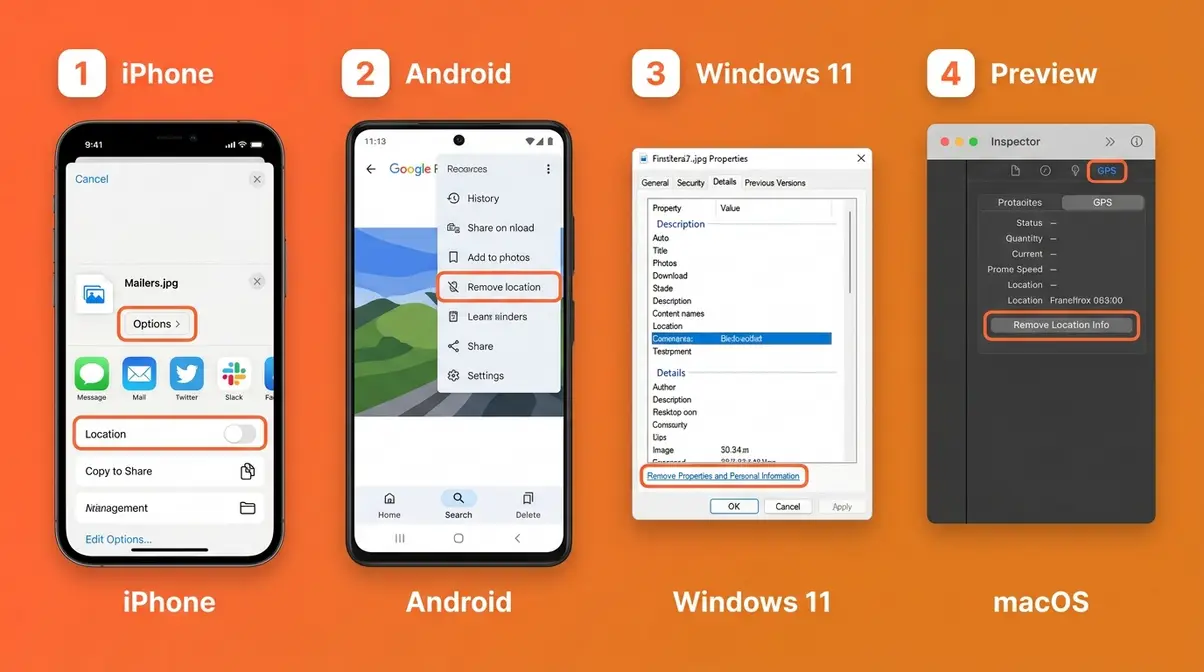
Removing metadata before sharing is safe, straightforward, and doesn’t affect your image quality in any way. Here’s how to do it on each platform.
- On iPhone (iOS 17):
- Open Settings → Privacy & Security → Location Services.
- Tap Camera and set it to “Never” or “While Using App” — this stops new photos from recording GPS going forward.
- To strip metadata from an existing photo before sharing: open the photo in the Photos app, tap Share, and use the “Options” button at the top of the share sheet.
- Toggle off “Location” — this removes GPS data from the shared copy without affecting your original.
- On Android (Android 14):
- Open the Camera app → Settings (gear icon).
- Find “Location tags” or “Geotagging” and toggle it OFF — disables GPS recording for future photos.
- To remove location from an existing photo: open Google Photos, select the photo, tap the three-dot menu → “Remove location”.
- On Windows 11:
- Right-click the photo in File Explorer → Properties → Details tab.
- Click “Remove Properties and Personal Information” at the bottom.
- Choose “Create a copy with all possible properties removed” (safest option — preserves your original) or “Remove the following properties from this file” to select specific fields.
- Click OK — the cleaned copy is saved to the same folder.
- On Mac (macOS Sonoma):
- Open the photo in Preview.
- Go to Tools → Show Inspector → GPS tab.
- Click “Remove Location Info” — strips GPS data from the file.
- For full metadata removal, use a free tool like ImageOptim (available at imageoptim.com) or ExifTool.
Methods for removing metadata may vary depending on your device model and operating system version. Always verify steps against your current OS version.
Does Screenshotting Remove Metadata?
This is one of the most common misconceptions about photo privacy — and the answer surprises most people.
Taking a screenshot does NOT remove the original photo’s metadata. It creates entirely new metadata.
Here’s what actually happens: when you screenshot a photo, your device captures what’s on screen as a brand-new image file. That new file gets its own EXIF data — your device model, the current timestamp, and your current GPS location at the moment you took the screenshot. The original photo’s metadata is gone, but your screenshot now contains your location and device information instead.
So if you screenshot a photo someone else took and then share it, the recipient sees a photo with YOUR GPS coordinates, not the original photographer’s. You haven’t eliminated the privacy risk — you’ve transferred it.
The only reliable way to share a photo without metadata is to explicitly strip it using the methods described above.
Is It Safe to Delete Photo Metadata?
Yes — for personal privacy purposes, removing metadata from photos you share is completely safe. Deleting metadata does not:
- Affect the image’s visual quality (resolution, colors, or sharpness remain identical)
- Delete the photo itself
- Remove the photo from your device
- Affect your original file (if you use the “create a copy” method on Windows or a dedicated tool)
The only scenarios where removing metadata has consequences are professional ones: news photographers who need to prove when and where an image was captured, or creators who rely on IPTC copyright data to protect their work. For everyday smartphone users sharing photos socially, metadata removal is safe, reversible (you keep the original), and recommended for any photo that contains sensitive location information.
Metadata Beyond Photos: HTML, AI, and Databases
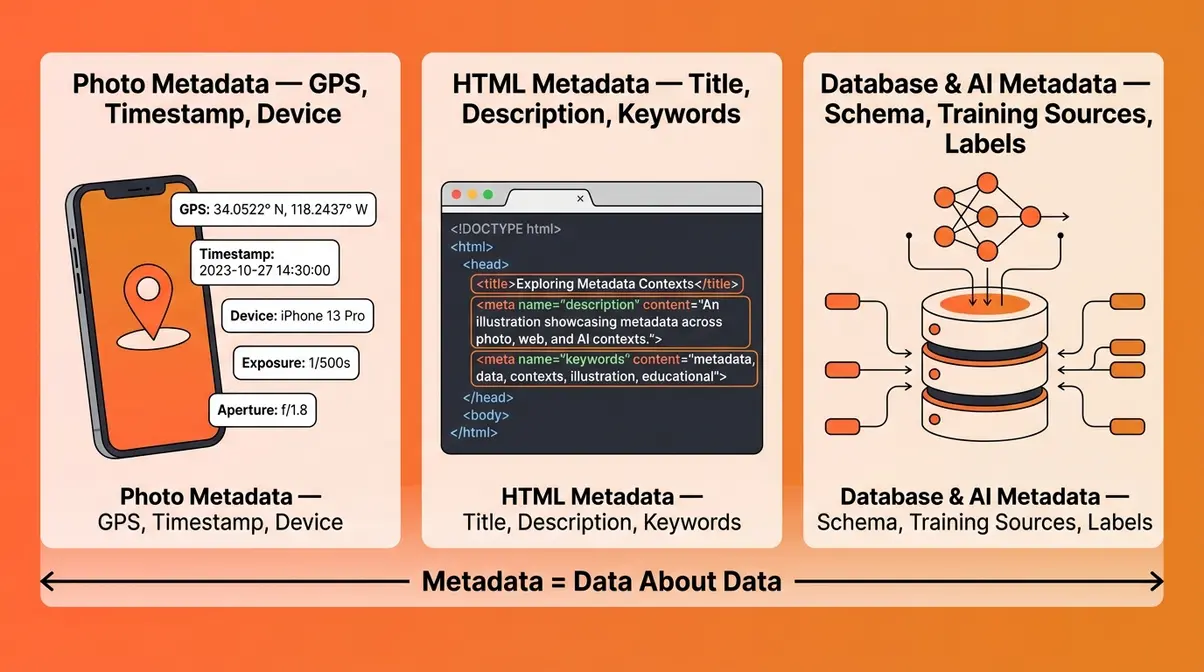
Photo metadata is the most personal example of a concept that runs through all of digital technology. Understanding the broader picture helps you recognize metadata in other contexts — and gives you a more complete picture of your overall digital footprint.
What Is Metadata in HTML?
In web development, HTML metadata is information about a webpage embedded in the
section of the HTML code — invisible to visitors but readable by browsers and search engines. It includes the page title, description, author, keywords, and instructions for how the page should be displayed on mobile devices.
When you search Google and see a result with a title and a short description beneath it, you’re looking at HTML metadata. The website owner wrote those fields specifically to appear in search results. This type of metadata doesn’t carry privacy risk for users — it’s public-facing information about a webpage, not hidden personal data.
What Is Metadata in Databases and AI?
Database metadata describes the structure of a database — the names of tables, the types of data stored in each column, relationships between tables, and access permissions. When a database administrator says “the schema,” they’re largely referring to metadata.
In AI and machine learning, metadata describes training datasets — what data was collected, when, from what sources, and how it was labeled. This helps researchers understand what an AI model knows and where its knowledge came from. As AI systems become more prevalent, metadata about AI training data is becoming a significant area of research in digital forensics and accountability.
Metadata is Always Data About Data
Across photos, websites, databases, and AI systems, one principle holds: metadata is always data that describes other data. It answers the questions: What is this? Where did it come from? When was it created? Who made it?
Your photo’s Three-Layer Digital Footprint — EXIF, IPTC, and XMP — is simply the most personal and immediately actionable version of this universal concept. The same invisible labeling system that helps a search engine understand a webpage is what records your home address when you take a photo in your kitchen.
Recognizing metadata as a universal concept — not just a photography issue — is what transforms privacy awareness from reactive alarm into proactive, informed control.
Common Misconceptions and Limitations
Our team evaluated metadata removal methods across iOS 17, Android 14, Windows 11, and macOS Sonoma. Here are the most important misconceptions to correct — and the honest limitations of metadata management.
Common Misconceptions
“Only professional cameras create metadata.”
False. Smartphones create more metadata than most DSLRs, specifically because they have constant GPS access. A basic DSLR without a GPS module records no location data. Your phone records it by default.
“Sharing on social media automatically makes my photos safe.”
Partially true — major platforms like Instagram and Facebook strip metadata server-side. But direct messages, email attachments, AirDrop, and personal website uploads do not. Assuming a platform strips metadata without verifying is a privacy risk.
“Deleting metadata ruins the photo.”
False. Metadata is stored separately from the image data itself. Removing it has zero effect on visual quality. The photo looks identical — it just loses its hidden label.
“Private accounts mean my metadata is private.”
False. A private Instagram account means fewer people see your posts — but any follower who downloads your photo before Instagram strips the metadata could access the original file’s data. Always strip sensitive metadata before uploading, not after.
When Metadata Removal Isn’t Enough
Metadata removal addresses the hidden data layer — but it’s one piece of a broader privacy picture. Consider these scenarios where stripping metadata alone doesn’t fully protect you:
- Background recognition: A photo showing a recognizable landmark, street sign, or building can reveal your location even with GPS data removed. Visual content can be as identifying as metadata.
- Reverse image search: Unique photos can be traced back to their source through image search tools, regardless of metadata status.
- Platform logging: Even when a platform strips metadata from displayed images, the platform itself may retain the original file (with metadata) in its servers. Review each platform’s data retention policy.
The goal of metadata management is to reduce your digital footprint, not eliminate all privacy risk. Used alongside thoughtful sharing habits, it’s a powerful and practical tool.
Frequently Asked Questions
Examples of photo metadata?
A concrete example of metadata in a photo is the GPS coordinates field in EXIF data. When you take a photo on a smartphone with location services enabled, the file automatically records the latitude and longitude of where you were standing — precise enough to identify your specific street address. Other examples include the exact timestamp (2026-03-14 08:23:47), your phone model (Apple iPhone 15 Pro), the aperture setting (f/1.78), and the photographer’s name if stored in the IPTC layer. Together, these five fields illustrate the full scope of what photo metadata can reveal about a single image.
Can I remove metadata from a photo?
Yes — removing metadata from photos is safe, free, and doesn’t affect image quality. On iPhone, use the share sheet’s “Options” toggle to remove location before sending. On Android, use Google Photos’ “Remove location” feature. On Windows, right-click the file → Properties → Details → “Remove Properties and Personal Information.” On Mac, use Preview’s GPS Inspector tab or a free tool like ImageOptim. For online photos, tools like Jeffrey’s Exif Viewer also offer removal. Removing metadata only strips the hidden data label — the photo itself remains visually identical.
How do I find the metadata of a photo?
Finding photo metadata takes fewer than 30 seconds on any device. On iPhone (iOS 17), open the photo in Photos and swipe up to see the info panel with date, time, and location. On Android, open Google Photos, tap the photo, and swipe up for the details panel. On Windows, right-click the file → Properties → Details tab. On Mac, open the photo in Preview → Tools → Show Inspector. For complete EXIF data on any platform, free tools like Jeffrey’s Exif Viewer (browser-based) or the Metapho app (iOS) show every metadata field without requiring technical knowledge.
Does screenshotting remove metadata?
Screenshotting does not remove metadata — it replaces it with new metadata. When you take a screenshot, your device creates a brand-new image file with its own EXIF data: your device model, the current timestamp, and your GPS location at the moment of the screenshot. The original photo’s metadata is no longer present, but your personal location and device information are now embedded instead. If you screenshot a photo and share it, the recipient sees YOUR metadata, not the original photographer’s. The only reliable way to share a photo without sensitive metadata is to explicitly strip it using your device’s built-in tools or a dedicated metadata removal app.
Conclusion
Photo metadata is hidden data embedded in every image file you take — recording your GPS location, device details, timestamps, and editing history in three invisible layers that travel with the photo wherever it goes. For everyday smartphone users, the EXIF layer’s GPS coordinates represent the most immediate privacy concern: a single shared photo can reveal your home address to anyone who downloads it and checks its properties.
The Three-Layer Digital Footprint — EXIF, IPTC, and XMP — isn’t a threat designed to frighten you. It’s a system designed for utility that carries unintended privacy consequences when photos leave your device. Understanding what is photo metadata and each layer puts you back in control: you know what’s there, you know which layer poses the greatest risk, and you now have the specific steps to remove it before sharing.
Your next step is simple: pick up your phone, open your most recent photo, and swipe up. See what’s there. Then decide whether you want it traveling with that image the next time you hit send. It takes 30 seconds — and that 30 seconds is the difference between sharing a memory and sharing your location.

Dave King
Hi, I'm Dave, the founder of Amateur Photographer Guide. I created this site to help beginner and hobbyist photographers build their skills and grow their passion. Here, you’ll find easy-to-follow tutorials, gear recommendations, and honest advice to make photography more accessible, enjoyable, and rewarding.